What Is Calendar BG? Google Calendar Backgrounds Explained
Calendar bg is short for calendar background: the image or color scheme behind your calendar grid. Here is what Google Calendar supports, and what it does not.
Introduction
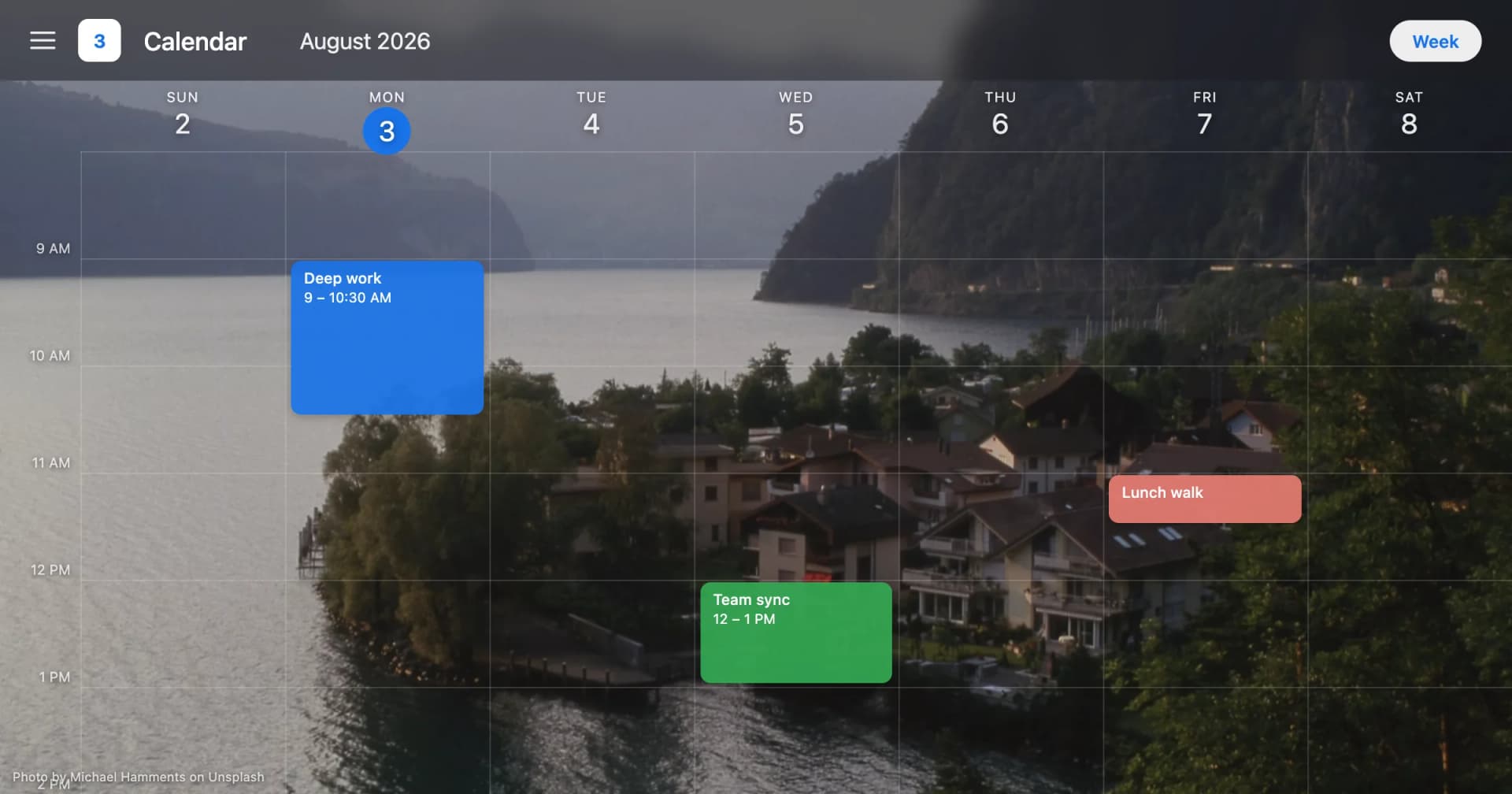
Calendar bg is short for calendar background: the image or color scheme shown behind your calendar grid. In Google Calendar the term covers two separate things, the native color and density controls that Google ships, and the background image that Google does not ship at all.
That second half is where most of the confusion starts. People search "calendar bg" expecting a setting, open Google Calendar, and find no place to upload a photo. What they find instead is an event color set and a density setting, both useful, neither of them a background image. So the term drifted outward, away from Google's own menus and toward the browser extensions that fill the gap.
Disclosure: CalendarBG, the publisher of this blog, builds Backgrounds for Google Calendar, the extension referenced below. This page is the map of the topic rather than a pitch, and the deeper guides linked throughout cover each piece properly.
Quick Answer
Calendar bg means calendar background. It refers to the visual layer sitting behind your calendar grid: either a color scheme, or a full image. Google Calendar natively supports an event color set (Classic or Modern) and a density setting, both found under the Settings gear icon at "Density and color". It offers 11 event colors. It does not support uploading a background image, which is why "calendar bg" is used almost entirely in the context of Chrome extensions.
What "Calendar BG" Means and Where the Term Comes From
Calendar bg is a compression of two words, "calendar" and "background", the way "wallpaper" compressed from desktop wallpaper. The shorthand travels well because it is ambiguous in a useful way. It covers a solid color, a gradient, a photograph, and a whole theme, without committing to which one you want.
The term is shorthand, not a Google feature name
You will not find "calendar bg" anywhere in Google Calendar's interface. Google's own vocabulary is narrower and more literal. The menu is called "Density and color", and inside it you choose between the Classic and Modern color sets and pick a row density. Nothing there is labelled a background.
This matters when you search for help. Queries written in Google's vocabulary lead to Google's support pages, which are accurate but limited to what the product does. Queries written in user vocabulary, "calendar bg", "calendar wallpaper", "google calendar themes", lead outward to third-party tools, because that is where the missing capability lives.
Two different things people mean by it
When someone says they want to change their calendar bg, they usually mean one of two things.
The first is the palette: the color of the events, the weight of the grid lines, how tightly the rows sit. That is a native job. Google gives you 11 event colors, named Tomato, Flamingo, Tangerine, Banana, Sage, Basil, Peacock, Blueberry, Lavender, Grape, and Graphite, plus the choice between the Classic and Modern color sets.
The second is the surface behind everything: a photograph, an illustration, a texture. That is not a native job. No amount of digging through Settings produces an upload field, because the field does not exist.
Most frustration around this topic comes from mixing the two. Someone reads a guide about the color set, applies it, and still does not have the calendar they pictured. The Google Calendar themes and customization guide walks through both layers side by side and shows where each one stops.
Why the term belongs to extensions now
A term follows the thing it names. Since the background image layer only exists through browser extensions, "calendar bg" became extension vocabulary by default. Search results for it are dominated by tools rather than by Google documentation, and that is a direct consequence of the feature gap rather than a marketing accident.
That also explains why the phrase carries a slight technical edge. People searching it have usually already looked in Settings, already failed to find anything, and are now looking for what else is possible.
Summary: Calendar bg is shorthand for calendar background, the image or color scheme sitting behind your Google Calendar grid. Google Calendar itself ships two visual controls, an event color set and a density setting, both under the Settings gear icon at "Density and color". It offers 11 event colors and no background image upload. That gap is why the term now belongs to browser extensions rather than to any official Google feature.
What to Know Before You Change Your Calendar Background
Before touching anything, it helps to understand what you are agreeing to. A background sits underneath every event you read, every day, so the decision is less cosmetic than it looks. Three things are worth checking first.
Readability comes before aesthetics
A calendar is a reading surface. Event titles are small, often truncated, and frequently scanned rather than read. A background with high detail in the middle of the grid competes directly with that text.
The practical test is boring and effective: load your busiest week, not an empty month. An image that looks calm behind four events can turn a fifteen-event Tuesday into noise. Low-contrast, low-detail images with an even tone across the middle survive that test. Sharp landscapes with a bright horizon line running through your working hours do not.
Permissions deserve a real look
Any extension that draws on top of Google Calendar has to run code on the page. That is a normal requirement, and it is also the thing worth checking before installing anything.
Two questions cover most of it. Which sites does the content script run on, and what scopes does it request? Backgrounds for Google Calendar runs its content script only on calendar.google.com, requests storage, identity, and activeTab, and uses the read-only Google Drive scope (drive.readonly), so it can display Drive photos but cannot modify anything in Drive. An extension that asks for write access to your Drive in order to show you a picture is asking for more than the job needs.
Chrome's own extension permissions documentation explains what each permission grants, which is worth a skim before you install any calendar tool, mine included.
Know what is free and what is not
Background tools in this category tend to split along the same line: a built-in image library on the free side, personal photos and automation on the paid side. Knowing where the line sits saves you from building a setup around a feature you will lose.
The free tier here returns 10 background results per search from a built-in library powered by Unsplash. That cap exists so the free tier stands on its own rather than acting as a teaser. PRO removes the cap and adds Google Drive photos, a favorites library, and scheduled auto-rotation, at $3.99 per month or $24.99 per year, with a 7-day trial. If a PRO subscription lapses, only PRO-sourced backgrounds stop, and images from the free library keep working.
The free vs PRO calendar background comparison lays out that split feature by feature, including what carries over when a subscription ends.
Summary: Check three things before changing your calendar background: readability on your busiest week, the permissions the extension requests, and which features sit behind a paywall. A well-scoped calendar extension runs its content script only on calendar.google.com and uses a read-only Drive scope (drive.readonly), so it can display photos without modifying them. Getting these right once means never rebuilding your setup after an unpleasant surprise.
The Full Landscape: What You Can and Cannot Customise in Google Calendar
Here is the honest inventory. Google Calendar gives you real control over color and spacing, and no control over the background surface. Everything in the "calendar bg" conversation sits somewhere on that line.
What Google handles natively
Event colors are the strongest native tool. There are 11 of them in the interface, and they are the backbone of any color-coding system: one hue per project, per client, per person, or per energy level. The same palette is documented in the Google Calendar API color reference for anyone building against it.
The color set is the second control. Classic and Modern render the same 11 colors with different saturation, so the whole grid shifts tone in one click. Density is the third, changing how tightly rows pack together. Both live under the Settings gear icon at "Density and color", and Google's official page on changing the event color set and density covers the exact steps.
Labels round out the native set, giving you a way to track entries without adding more color noise to the grid.
If color coding is the part you want to get right, the Google Calendar color coding guide covers assigning the 11 colors to a system you will still recognise in six months.
What needs an extension
The background image is the headline gap, but it is not the only one. Anything involving your own media, automation over time, or a look that changes on a schedule falls outside the native controls.
| What you want to change | Native in Google Calendar | Needs an extension | Best For |
|---|---|---|---|
| Individual event color | Yes, 11 colors | No | Color coding by project, client, or person |
| Color set (Classic / Modern) | Yes, at "Density and color" | No | Softening or sharpening the whole palette |
| Row density | Yes, at "Density and color" | No | Fitting a busy week onto one screen |
| Labels on entries | Yes | No | Tracking without adding more colors |
| Background image behind the grid | No | Yes | Making the calendar pleasant to open |
| Your own photos as a background | No | Yes, with a read-only Drive scope | Personal photos and team brand images |
| Scheduled rotation of backgrounds | No | Yes | Keeping the view fresh without manual work |
| Dark, low-glare look | Not a control in the color and density menu | Yes, through background choice | Evening work and low-light rooms |
That last row catches people out. A darker calendar is achievable, but not through a single native toggle in the color and density menu, so it gets handled at the background layer instead. The Google Calendar dark mode customization guide covers how to get there without losing text contrast.
Where the two layers meet
The best-looking calendars are not the ones with the most dramatic image. They are the ones where the event colors and the background were chosen together. A cool-toned background with Modern colors reads as one design. The same background with high-saturation Classic colors reads as two designs fighting.
Pick the background first, then adjust the color set to sit with it. That order works because the background occupies more pixels and sets the mood, while the color set is a one-click adjustment you can retune in seconds.
Summary: Google Calendar natively controls event colors (11 of them), the Classic or Modern color set, row density, and labels, all reachable from the Settings gear icon at "Density and color". It does not control the background surface. Background images, personal Drive photos, and scheduled rotation each require a browser extension. Choosing the background first and tuning the color set to match produces a calendar that reads as one deliberate design.
Customize Your Google Calendar
Add beautiful backgrounds to your calendar with CalendarBG. Free to try, no credit card needed.
Add to Chrome — FreeHow to Get Started With a Calendar Background
Getting a background onto Google Calendar takes a few minutes. Getting one you still like in a month takes slightly more thought. This is the order I would follow.
Step one: install and pick from a library
Start with a library image rather than a personal photo. Library images from Unsplash are shot and cropped in ways that tolerate text on top, which makes them a forgiving first choice while you learn what works on your own grid.
The step-by-step guide to adding a background image to Google Calendar covers the install and the first setup in order, including where the controls appear once the extension is running. That is the guide to open in a second tab if you want to follow along rather than read theory.
Step two: move to your own photos when you are ready
Personal photos are the natural upgrade, and also the one that most often breaks readability. A holiday photo with faces, buildings, and sky in the top third will fight your morning events for attention.
The trick is choosing photos with a large calm area, then positioning that area behind the busiest hours. Drive-sourced photos make this practical because you can swap between candidates quickly without re-uploading anything. The guide to using Google Drive photos as a calendar background covers connecting Drive with a read-only scope and picking images that survive a full week view.
Step three: build a rotation instead of a single choice
A single fixed image gets invisible after about two weeks, and then it gets slightly annoying. A small rotating set stays pleasant far longer, which is why scheduled rotation exists as a feature at all.
Three to five images works better than twenty. Enough variety to feel fresh, few enough that the calendar still feels like yours rather than a screensaver.
For picking that set, the best Unsplash backgrounds for productivity collects images that hold up behind dense text rather than ones that look best as standalone wallpapers. Those are different criteria, and the difference shows up fast on a busy Tuesday.
Summary: Start with a library image from the built-in Unsplash-powered library, move to your own Google Drive photos once you know what survives a busy week, then build a rotating set of three to five images. The free tier returns 10 results per search, which is enough to find a working background without paying anything. Rotation is what keeps a calendar background pleasant past the two-week mark.
Keeping Your Calendar Background Useful Over Time
A background is a long-lived choice. You look at it more than almost any other surface on your screen, which means the failure modes are slow rather than dramatic. Two are worth planning for.
Eye comfort beats novelty
Bright, high-contrast images are pleasant for a day and tiring for a month. The calendars people keep are consistently the calmer ones: lower contrast, softer tone, fewer competing focal points.
If you spend long stretches in the calendar, the screen fatigue and calendar customization guide covers choosing tones that stay comfortable across a full working day rather than ones that photograph well.
Refresh on a schedule, not on impulse
Changing a background because it stopped feeling right is a small tax you pay repeatedly. Changing it on a schedule removes the decision. A seasonal cadence, four changes a year, is enough for most people and matches how the light in your room changes anyway.
Scheduled auto-rotation handles this without any input once the favorites list is set. Point it at a folder or a favorites set, and the calendar refreshes itself.
Seasonal sets are the easiest version of this to maintain. Four small collections, one per season, built once and reused every year after that. Swapping the set takes a minute in spring and another in autumn, and the calendar stays current without any ongoing effort from you.
Licensing is worth one minute of your attention
Library images come with terms. The built-in library here draws on Unsplash, and the Unsplash License sets out what you can do with those photos. For a personal calendar this rarely creates an issue, but if you are putting a background on a shared team calendar or a screen that appears in recorded meetings, spend the minute reading it.
Personal photos have no such question, which is one more argument for moving to Drive-sourced images once you are past the experimenting stage.
If you want the extension our team builds, it is on the Chrome Web Store: Backgrounds for Google Calendar. It currently has 340+ users and a 5.0 rating from a small number of reviews, with a 7-day PRO trial if you want to test the paid features before deciding.
Summary: A calendar background fails slowly rather than suddenly, through eye strain and through going stale. Pick lower-contrast images, refresh on a seasonal cadence of roughly four changes a year, and let scheduled rotation remove the decision entirely. Library images from Unsplash carry license terms worth one minute of reading before you put them on a shared team screen. Set this up once and it holds for years.
Key Takeaway
Calendar bg means calendar background: the image or color scheme behind your calendar grid. Google Calendar natively supports 11 event colors, the Classic and Modern color sets, and a density setting, all at "Density and color" under the Settings gear icon. It does not support background image uploads, so that layer requires a browser extension.
Frequently Asked Questions
What is a calendar bg?
Calendar bg is short for calendar background, the image or color scheme displayed behind your calendar grid. The term covers both a color palette and a full photographic background. In Google Calendar, the color side is native and the image side is not. That split is why the term appears mostly in discussions about browser extensions rather than in Google's own documentation.
What does "bg" stand for?
BG stands for background. It is the same abbreviation used across design and web work, where "bg" appears in CSS properties and design file layer names. Applied to calendars, it means the visual layer sitting behind your events and grid lines. The abbreviation spread because it is short and because it covers colors, gradients, and images at once.
Can you set a background image in Google Calendar?
Not with Google Calendar's own settings. The native visual controls are the event color set (Classic or Modern) and the density setting, both under the Settings gear icon at "Density and color". Neither one accepts an uploaded image. A browser extension is required to draw an image behind the calendar grid, which is the reason this category of extension exists.
How many event colors does Google Calendar have?
Google Calendar offers 11 event colors in the interface: Tomato, Flamingo, Tangerine, Banana, Sage, Basil, Peacock, Blueberry, Lavender, Grape, and Graphite. The same set is documented in the Google Calendar API color reference for developers. Switching between the Classic and Modern color sets changes how saturated those 11 colors appear without changing how many you have.
Where do I change the Google Calendar color set and density?
Open Google Calendar, click the Settings gear icon, and choose "Density and color". That panel holds both controls: the color set toggle between Classic and Modern, and the density setting that changes row spacing. Those two settings are the full extent of Google Calendar's native visual customization. Anything beyond them, including background images, comes from an extension.
Does a calendar background extension need access to my Google account?
Only for the features that need it. Displaying library images requires permission to run on the calendar page, not account access. Showing your own photos requires a Google Drive scope. The extension we build runs its content script only on calendar.google.com, requests storage, identity, and activeTab, and uses the read-only Drive scope (drive.readonly), so it can display Drive photos but cannot modify them. Check any extension's requested scopes before installing.
What happens to my background if I stop paying for a paid plan?
In the extension we build, only PRO-sourced backgrounds stop working, meaning Google Drive photos and scheduled rotation. Images from the free built-in library keep working as normal, and the free tier still returns 10 results per search. Your calendar does not revert to a blank grid. Other extensions handle lapsed subscriptions differently, so check before you build a setup around a paid feature.
References
[1] Google Calendar Help, "Change event color set & density in Google Calendar," 2026. Official documentation for the native color set and density settings. https://support.google.com/calendar/answer/15619910
[2] Google Calendar Help, "Use labels to track calendar entries," 2026. Official guide to labelling calendar entries for tracking. https://support.google.com/calendar/answer/12377581
[3] Google for Developers, "Google Calendar API Colors reference," 2026. The API reference listing Google Calendar event and calendar color definitions. https://developers.google.com/workspace/calendar/api/v3/reference/colors
[4] Chrome for Developers, "Chrome Extensions Manifest V3 documentation," 2026. Reference for extension permissions and content script scoping. https://developer.chrome.com/docs/extensions/mv3/
[5] Unsplash, "Unsplash License," 2026. The license governing free use of Unsplash images. https://unsplash.com/license
[6] Chrome Web Store, "Backgrounds for Google Calendar," 2026. The Chrome Web Store listing for the extension discussed in this article. https://chromewebstore.google.com/detail/backgrounds-for-google-ca/ckphndgaidhndacbmjomlcnkjhlcnikb
#calendarbg #googlecalendar #background #customization #guide
Try CalendarBG for Free
Customize your Google Calendar with beautiful backgrounds. No credit card required.
Add to Chrome — It's FreeRelated Articles
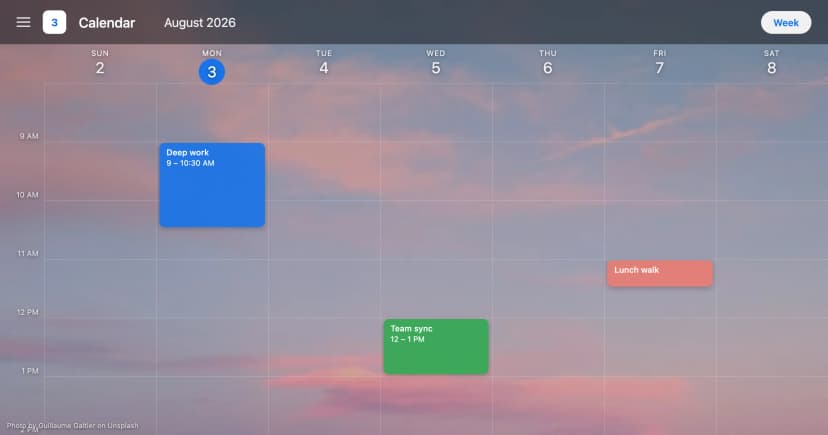
How to Decorate Google Calendar in Six Steps
Learn how to decorate Google Calendar in six steps, from the free color set and 11 event colors to d
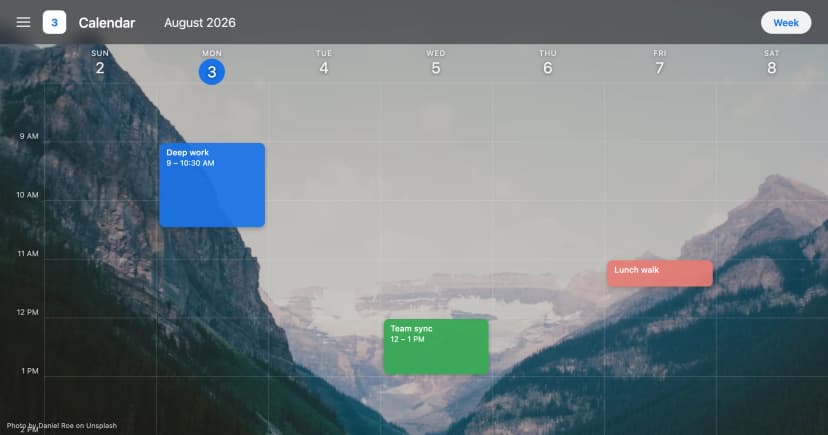
What to Check Before Installing a Google Calendar Background Extension
A google calendar background extension puts a custom image behind your grid. How to check permission
Family Shared Calendar: The Complete Setup Guide for...
A family shared Google calendar is essential for eliminating scheduling conflicts and distributing t