What to Check Before Installing a Google Calendar Background Extension
A google calendar background extension puts a custom image behind your grid. How to check permissions, image licensing, and free tiers before you install one.
Introduction
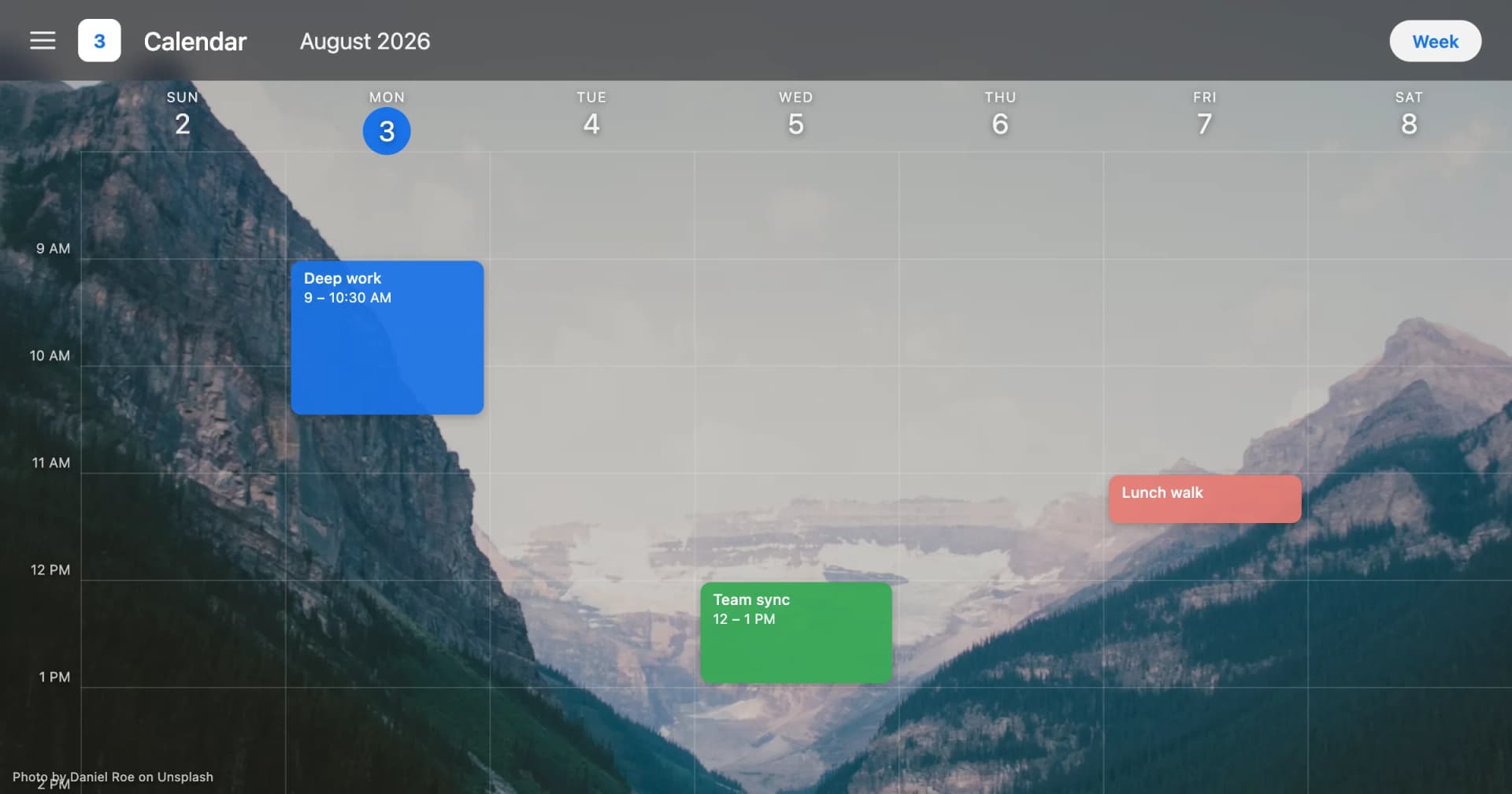
A Google Calendar background extension is a Chrome extension that draws a custom image behind the Google Calendar grid, because Google Calendar has no built-in way to set a background image. Google's only native visual controls are the event color set (Classic or Modern) and the density setting, both found under the Settings gear icon in "Density and color".
That gap is the reason our team wrote code instead of filing a feature request. We wanted a photo behind the week view, found that the platform offered eleven event colors and two density options and nothing else, and built the thing ourselves. Disclosure: CalendarBG, the publisher of this blog, builds Backgrounds for Google Calendar, the extension referenced below, so read this guide as the developer team explaining the category rather than a neutral reviewer ranking brands.
This guide will not hand you a "top 5 extensions" list. I have not audited anyone else's code, and rating competitors I have not read would be guessing dressed up as advice. What follows is the checklist I would use on any extension in this category, including my own.
Quick Answer
What a Google Calendar Background Extension Does
Quick Answer: A Google Calendar background extension injects a content script into calendar.google.com and renders your chosen image behind the calendar grid, entirely inside your own browser. Nothing about your events, sharing, or calendar data changes, and nobody else sees the image. Before installing one, check three things: the content script is scoped to calendar.google.com, any Google Drive access is read-only, and the free tier works on its own.
How a Google Calendar Background Extension Actually Works
The mechanism is smaller than most people expect. Google Calendar is a web page, and a Chrome extension can inject a content script into that page. The script adds an image layer under the grid, then makes the surfaces above it transparent enough for the photo to show through. That is the whole trick. No API calls against your calendar, no sync, no server involved.
The content script is the entire mechanism
A content script is JavaScript that a browser extension runs inside a specific web page. The important word is "specific". A well-built background extension declares one match pattern: https://calendar.google.com/*. The code then cannot run on your bank, your email, or any other tab. In our extension the content script runs only on calendar.google.com, and we treat that as a hard boundary rather than a setting.
Extensions that instead declare <all_urls> are asking to run everywhere. Sometimes there is a reason. For a background image on one Google product, there is not. Chrome's own extension permissions documentation covers how match patterns are declared, and the store listing shows the result in plain language before you click Add.
What the extension changes, and what it leaves alone
The image lives in your browser profile. It does not travel with your account. Open the same calendar on your phone, or in a browser without the extension, and you see standard Google Calendar. Share a calendar with a colleague and they see standard Google Calendar too. The background is a local visual layer, not a calendar property.
Your events are equally untouched. The extension does not create, edit, or delete entries. It also does not change the eleven event colors Google provides (Tomato, Flamingo, Tangerine, Banana, Sage, Basil, Peacock, Blueberry, Lavender, Grape, Graphite). You still switch between the Classic and Modern sets in Google's own density and color settings.
Where the images come from
Two sources dominate the category. The first is a built-in stock library that the extension searches for you. Mine is powered by Unsplash. The second is your own photos, pulled from Google Drive through an OAuth scope you approve at connect time. Drive-sourced backgrounds are the more personal option, and the one that deserves the closest permission check.
Summary: A Google Calendar background extension works by injecting a content script into calendar.google.com that renders an image layer behind the grid. It changes nothing about your events, your sharing settings, or Google's eleven event colors, and the image exists only in the browser where the extension is installed. Images come either from a built-in library such as Unsplash or from your own Google Drive photos. Understanding this local-only model is what makes the permission questions below easy to answer.
Customize Your Google Calendar
Add beautiful backgrounds to your calendar with CalendarBG. Free to try, no credit card needed.
Add to Chrome — FreeHow to Evaluate a Google Calendar Background Extension Before You Install
Screenshots on a store listing tell you what an extension looks like. They tell you nothing about what it can reach. Four checks separate a safe install from one to skip, and all four are verifiable before you click Add to Chrome.
Check the permission list, not the screenshots
Chrome shows you the permission summary in the install dialog. Read it. A background extension needs three things: storage to remember your image, identity if it signs you in, and activeTab. My extension requests exactly those three, with the content script scoped to calendar.google.com. If one asks to read and change data on all websites, the request is larger than the job.
The Drive question is the sharpest one. An extension that shows your own photos needs to read Drive. It does not need to write to Drive. The read-only scope is called drive.readonly, and an extension using it can display your photos while being incapable of modifying or deleting them. If a listing asks for full Drive access to paint a picture behind a calendar, walk away. There is more on this in the Google Drive photos guide.
Check the image licensing
Stock libraries are not interchangeable. An extension that scrapes image search results hands you files with unclear rights. One built on a named source gives you a license you can read. My built-in library is powered by Unsplash, and the Unsplash License is public and readable in two minutes. Treat "the internet" as a failing answer.
Check what happens when you stop paying
Nobody asks what a paid extension looks like after cancellation. There are two designs. In one, the background vanishes and your calendar reverts, which turns the subscription into a hostage situation. In the other, only the paid-source features stop.
My extension uses the second design. When a PRO subscription lapses, the PRO-sourced backgrounds stop, meaning Drive photos and scheduled rotation. Images from the free built-in library keep working. Ask for this answer before you pay anyone.
Three approaches compared
The real decision is not brand against brand. It is which approach fits you.
| Approach | What it changes | Cost | Best For |
|---|---|---|---|
| Google Calendar native color set and density | 11 event colors (Classic or Modern set) and row spacing. No image. | Free, built in | People who want a tidier grid and refuse to install anything |
| Browser extension with a built-in image library | Adds an image layer behind the grid, from a licensed stock library such as Unsplash | Free tier, optional paid upgrade | Anyone who wants a background working in a minute, with no files to manage |
| Extension using your own Google Drive photos | Same image layer, from photos you already own, through a read-only Drive scope | Usually the paid tier | People who want personal photos and rotation between them |
Summary: Evaluate a Google Calendar background extension on four verifiable points. Is the content script scoped to calendar.google.com alone? Is Drive access limited to the read-only drive.readonly scope? Does the image library carry a named license, such as the Unsplash License? Do free-library backgrounds survive a lapsed subscription? My extension requests only storage, identity, and activeTab. Apply these four checks and the brand name on the listing stops mattering.
Installing and Setting Up a Google Calendar Background Extension
Installation takes about a minute. Getting a setup you still like in week three takes a few more decisions, mostly about contrast. Here is the sequence I recommend.
Step 1: Install, then pin
Open the Chrome Web Store listing and read the permission summary before accepting. You should see storage, identity, and activeTab, plus site access limited to calendar.google.com. Click Add to Chrome, then pin the extension to your toolbar so the controls stay one click away. The current build is version 44.0.1, with 340+ users and a 5.0 rating from a small number of reviews.
Step 2: Open Google Calendar and pick your first image
Load calendar.google.com in the same browser, then open the extension. Search the built-in library by keyword. On the free tier each search returns 10 results, which is enough to find something you like without scrolling for ten minutes. I capped it at 10 deliberately so the free tier stands on its own rather than working as a teaser, and PRO removes the cap.
Choose a first image with one rule: pick something where a large area is close to a single tone. Photographs with a clear sky, a fog bank, a wall, or shallow depth of field give your event chips a calm surface to sit on. Dense forest scenes and busy city streets look excellent as wallpaper and terrible behind text.
Step 3: Tune Google's own settings to match
Go to the Settings gear icon in Google Calendar, then "Density and color". Two choices matter. The color set (Classic or Modern) changes how saturated your eleven event colors appear, and Modern reads better over photography in most cases. The density setting changes row spacing, and a compact grid means less visible background.
Do this tuning immediately after setting a background, not a week later. The pairing of image and color set is what makes the result look designed instead of pasted together. The full walkthrough lives in how to add a background image to Google Calendar, and the wider context for the category is on our hub page, what Calendar BG is.
Step 4: Optional, connect Drive and set rotation
If you want your own photos, connect Google Drive and confirm the consent screen says read-only access. Once connected, you can pull images from Drive and add them to a favorites library. Scheduled auto-rotation then cycles through those favorites on its own. Both are PRO features.
Summary: Install a Google Calendar background extension from the Chrome Web Store, pin it, then set your first image from the built-in library, where the free tier returns 10 results per search. Open the Settings gear icon next and adjust "Density and color", since the Modern color set reads better over photography. Connect Google Drive last, and only if the consent screen confirms read-only access. Ten minutes of tuning on day one prevents the fatigue that makes people uninstall by week three.
What a Google Calendar Background Extension Costs: Free Tier Versus PRO
Pricing in this category follows a freemium pattern, and the number that matters is not the monthly price. It is how much you get without paying, because that determines whether the paid tier is an upgrade or a ransom. A free tier that returns three watermarked images is a demo. A free tier you can use forever is a product.
What the free tier should cover
At minimum, a free tier should let you set a real background from a licensed library and keep it indefinitely. Mine returns 10 image results per search from the built-in Unsplash-powered library, with no watermark and no expiry. That is the level to benchmark against. If an extension's free tier cannot produce a usable calendar on its own, the paid tier is buying you back functionality rather than adding any.
What the paid tier is actually for
The paid features cluster around personalization and automation, not around removing artificial locks. In our extension, PRO covers unlimited search results, your own Google Drive photos, scheduled auto-rotation of favorites, and a favorites library. Those are the things that cost real engineering: OAuth handling, an image pipeline, and a scheduler.
| Free | PRO | |
|---|---|---|
| Image results per search | 10 | Unlimited |
| Built-in library (Unsplash) | Yes | Yes |
| Your own Google Drive photos | No | Yes |
| Scheduled auto-rotation of favorites | No | Yes |
| Favorites library | No | Yes |
| Price | $0 | $3.99/month, or $24.99/year (annual list price $47.88) |
| Trial | Not needed | 7 days of PRO |
How to decide without guessing
Run the 7-day trial and watch one behavior: do you open the extension to change your image, or do you forget it is there? People who change images often get their money back from rotation and the favorites library. People who set one photo and leave it happy should stay on the free tier, and I would rather they did. There is a side-by-side breakdown in our free versus PRO comparison.
Summary: A Google Calendar background extension should be usable for free, and the paid tier should add personalization rather than unlock basics. My free tier returns 10 image results per search with no watermark and no expiry, while PRO costs $3.99 per month or $24.99 per year against an annual list price of $47.88, with a 7-day trial. Use the trial to observe how often you change images, and let that behavior decide the tier for you.
Common Mistakes People Make With Google Calendar Background Extensions
Four mistakes account for most of the frustration in this category. Three are about images, and one is about permissions. All are avoidable in the first ten minutes.
Mistake 1: Choosing an image you love instead of one that works
The single most common error is picking a photograph that is beautiful at full screen and unreadable behind a grid. High-detail images fight with text. Your calendar shows event titles at small sizes, and every busy region behind them costs you legibility. Test the image with a full week loaded, not an empty Monday.
The fix is boring and effective: prefer images with large calm areas, and prefer the Modern color set when the photo is busy.
Mistake 2: Approving permissions you did not read
The install dialog is the last moment where declining costs you nothing. People click through it because they are excited about the screenshots, then wonder later what the extension can see. Read the two lines. Site access should name calendar.google.com. Any Drive connection should say read-only. If an extension in this category asks to read and change data on all sites, decline, and lose nothing but a wallpaper.
Mistake 3: Expecting the background to follow you everywhere
The background lives in one browser profile on one machine. It does not appear on your phone's Google Calendar app. It does not appear on a colleague's screen, or on a different computer without the extension installed there. This surprises people who assume anything touching a Google account syncs through the account. Nothing here does, which is also why the feature carries so little risk.
Mistake 4: Paying before running the trial
The 7-day PRO trial exists to answer one question, which is whether you use rotation. Subscribing before answering it is how people end up paying $24.99 a year for a background they set once and never touched. Run the trial, count how many times you changed your image, and decide from the count. If the answer is zero, the free tier already fits you.
Summary: Four mistakes ruin a Google Calendar background extension setup. Picking a high-detail image that hides your event text. Approving permissions without reading the two lines that matter. Expecting the background to sync across devices when it lives in one browser profile. Subscribing before running the 7-day trial. Each is avoidable in the first ten minutes after install. Fix the image choice first, because that decides whether you keep the extension at all.
Key Takeaway
A Google Calendar background extension adds a custom image behind your calendar grid using a content script on calendar.google.com, since Google itself offers only event colors and density settings. Judge any extension on four points: content script scoped to calendar.google.com, read-only Drive access, a named image license, and free-library images that survive a cancelled subscription.
Next step: if you want to try the approach, install Backgrounds for Google Calendar from the Chrome Web Store, set one image from the free library, and spend five minutes in "Density and color". If you would rather browse the category first, start with our best Chrome extensions for Google Calendar roundup.
Frequently Asked Questions
Is a Google Calendar background extension safe to install?
Safety in this category comes down to scope, and scope is visible before you install. A background extension needs a content script on calendar.google.com and little else, so an extension requesting access to all websites is asking for more than the job requires. Check the install dialog for site access limited to calendar.google.com, and check that any Google Drive connection uses the read-only drive.readonly scope. My extension requests storage, identity, and activeTab. Those three checks take under a minute and tell you more than any review count.
Will other people see the background on my shared calendars?
No. The image is rendered locally by a content script inside your browser, and it is not a property of the calendar itself. Colleagues who share a calendar with you see standard Google Calendar, with the same event colors and density they always had. The same applies to screen sharing on a machine where the extension is not installed. The only way another person sees your background is by looking at your screen.
What happens to my backgrounds if I cancel PRO?
In our extension, only the PRO-sourced backgrounds stop working, meaning Google Drive photos and scheduled auto-rotation. Images from the free built-in library keep working after cancellation, so your calendar does not revert to plain white. Not every extension is built this way, and some remove the background entirely when payment stops. Ask before you subscribe, because the answer separates a product from a subscription trap.
Can I use my own photos instead of a stock library?
Yes, through Google Drive. Connect the extension to Drive and it can display photos you already store there, then add them to a favorites library for automatic rotation. The scope that matters is drive.readonly, which lets the extension read and display your files while making it incapable of modifying or deleting them. Drive photos and scheduled rotation are PRO features, priced at $3.99 per month or $24.99 per year.
Does Google Calendar have a built-in background feature?
No. Google Calendar offers an event color set (Classic or Modern) and a density setting, both under the Settings gear icon in "Density and color", plus eleven named event colors and labels for tracking entries. There is no upload field for a background image anywhere in the settings. That absence is the reason this extension category exists, and the reason a browser extension is the only route to a background image today.
Why do free tiers cap image search results, and is 10 enough?
Most caps exist to push you toward a subscription. I set my free search limit to 10 results per search for the opposite reason, so the free tier would be usable on its own rather than a teaser, and PRO removes the cap. Ten results is enough to find a good background for a given keyword, because you are choosing one image, not building a gallery. If you search often or want unlimited browsing, that is a genuine reason to upgrade.
References
[1] Google Calendar Help, "Change event color set & density in Google Calendar," 2026. Official documentation for the native color set and density settings. https://support.google.com/calendar/answer/15619910
[2] Google Calendar Help, "Use labels to track calendar entries," 2026. Official guide to labelling calendar entries for tracking. https://support.google.com/calendar/answer/12377581
[3] Chrome for Developers, "Chrome Extensions Manifest V3 documentation," 2026. Reference for extension permissions and content script scoping. https://developer.chrome.com/docs/extensions/mv3/
[4] Unsplash, "Unsplash License," 2026. The license governing free use of Unsplash images. https://unsplash.com/license
[5] Chrome Web Store, "Backgrounds for Google Calendar," 2026. The Chrome Web Store listing for the extension discussed in this article. https://chromewebstore.google.com/detail/backgrounds-for-google-ca/ckphndgaidhndacbmjomlcnkjhlcnikb
#googlecalendar #chromeextension #background #customization #buyersguide
Try CalendarBG for Free
Customize your Google Calendar with beautiful backgrounds. No credit card required.
Add to Chrome — It's FreeRelated Articles
What Is Calendar BG? Google Calendar Backgrounds Explained
Calendar bg is short for calendar background: the image or color scheme behind your calendar grid. H
How to Decorate Google Calendar in Six Steps
Learn how to decorate Google Calendar in six steps, from the free color set and 11 event colors to d

Family Shared Calendar: The Complete Setup Guide for...
A family shared Google calendar is essential for eliminating scheduling conflicts and distributing t